Sunday, July 3, 2016

The clock is ticking HTC at MWC 2015


Since few years every March means a lot of fascination and excitement in the Android world. March is a special month for thousands of Android users, especially those using devices from the ambitious and inventive Taiwan manufacturer - HTC.

HTC is not the biggest company out there, but during past years HTC introduced by far the most innovation in their products and trends in the Android devices design. Empty words? Sycophancy? No.

The HTC One M7 introduced in March 2013 has received numerous awards and accolades, including being named "Best New Mobile Device" by the GSM Association at Mobile World Congress 2013, and was named the best smartphone of 2013 at the same conference in 2014.

One year later, in March 2014 HTC introduced the HTC One M8. Just like its predecessor, the One M8 received most awards in the mobile devices industry, including "Phone of the Year" at the T3 Gadget Awards 2014.

One of the HTC One M9 renders

This year HTC is not going to rest on its laurels. On March 1st, right before the Mobile World Congress in Barcelona (March, 2nd) HTC will present the successor of the HTC One M8. Some say it will be called "One M9", some say it will be called "Hima". Honestly? Name doesnt matter to me. All I know is that the design line of the HTC One series will be kept and the incoming high-end HTC smartphone will set new trends for the 2015. The expected device specification looks promising. Also what we can be sure of, the HTC One M9 will be running Android Lollipop out of the box with the refreshed HTC Sense 7.0 user interface. Personally, I cant wait!

Oh, and one more thing.

It wont be made of plastic.

Do you have any questions or comments? Feel free to share! Also, if you like this article, please use media sharing buttons (Twitter, G+, Facebook) below this post!


For latest news follow Android Revolution HD on popular social platforms:

Read More..

Saturday, July 2, 2016

HTC Sense 6 0 UI Lollipop vs KitKat comparison


Earlier this month HTC has released Android 5.0 for the HTC One M8 together with the HTC Sense 6.0. New Over The Air (OTA) update started rolling out for WWE unbranded devices on Wednesday (28.01.2015), so during these few days I had a chance to look closely at the user interface changes after the update. I didnt expect many, because HTC Sense version is still the same, but Android Lollipop is quite a big platform upgrade, so some major and some little visual changes are all over the place.

I hope youll enjoy reading!

Something I couldnt really capture and compare are new Android 5.0 animations. The effect of the touched button is really nice. There are more improvements and changes in this area, but its not my intention here to describe Android L animations or transition effects. Below is just en example of how the new Android L touched button animation works.

Source: www.goo.gl/W59bHJ

Below you can find a side-by-side comparison of a different UI components from the HTC Sense 6.0 before and after the upgrade to Android 5.0 (KitkKat vs Lollipop). Picture on the left always represents Android 5.0.1 Lollipop with the HTC Sense 6.0, while the picture on the right shows Android 4.4.4 KitKat with the HTC Sense 6.0 on board too. Have fun!

Main screen - nothing has really changed here. Also the widgets screen where you can configure different widgets and a number of desktops remains unchanged.


Lock Screen - one of the most changed element of the HTC user interface. The notification system in Android 5.0 Lollipop has been significantly updated and this has an important impact to the Sense Lock Screen too.

First of all, the notifications are no longer visible on the status bar, but when the device is locked they appear on the lock screen in a form of a list with a content preview. You can dismiss any of them the same was as before - by sliding it left or right.


The bottom arrow pointing to slide a finger up to unlock the device is also gone. The "Charging" icon has been moved to the bottom of the screen and the look of the "locker" icon is also slightly different. In case of too many notifications on the Lock Screen you can expand the hidden ones by clicking on the "+1" button at the end of the list.


The animation to unlock the device is also different. It seems that now it makes no difference whether you move your finger up, left or right. No matter what direction you choose, the locker will only go up and unlock the device.


Pull down menu - that one is also related to the extended notifications system in the Android Lollipop. The pull down menu is now semi-transparent and it looks much different. The "X" icon works the same as before and you can use it to dismiss all notifications at once. There is also a "Settings" icon that takes you directly to the Settings menu. The Quick Settings icon is gone, because the flipping animation is also gone, and to enter the Quick Settings menu user has to swipe down again while being in the pull down menu.


You can also tap and hold your finger on the particular notification to see more details about the app that sent the notification.


Quick Settings - works pretty much the same, only the background is different due to the previously mentioned changes in the notifications system. I think even the icons are the same.


Task Manager - one of the greatest changes Ive noticed so far. The list of the applications you can run from the Tasks Manager is pretty impressive and its not gone even after device reboot. It works very fast too. This is a true multitasking, finally!


Keyboard selection - the keyboard icon to select different input method is moved from the notification bar to the navigation bar. You no longer need to pull down the menu and tap on the keyboard icon to change the input method. Just click on the keyboard icon on the very right side of the navigation bar.


The menu window to select a different keyboard type is also slightly different. Now its using Material Design framework.


Power menu - the only change in the Settings ---> Power menu is removed "Fast boot" mode. I have no clue why HTC decided to remove it but personally I wasnt even using it, so I dont cry :)


Security - there are quite a lot of changes in this system component. You cant add any lock screen widgets any more. As far as I know not many used that feature, but maybe HTC will bring it back in the HTC Sense 7.0 update. There is also a new feature called "Smart Lock" - a new tool to make unlocking your phone easier. You can set it to keep your phone unlocked when you have a trusted Bluetooth device connected to it, when its in a familiar location like your home or work or when it recognises your face. HTC also decided to remove the "Notification settings" and "Unlock Music Automatically" from the Security screen.


Settings menu - only 2 changes here - new search icon that allows you to find settings components fast and easy. However it doesnt have many key words yet. Also "Sound" changed to "Sound & Notifications" (more details about that change below).


App notification - one of the reasons why "Sounds" changed to "Sounds & notifications". You can now go to Settings ---> Sounds & Notifications ---> App notifications and scroll down to see a list of all apps installed on your device.


Just select and tap of the app to enter new menu where you can prevent the app from sending you any kind of notifications ("Block") or set the priority of the app notifications to be shown at the top of the list ("Priority").


Apps manager - slightly re-designed with a new cool "Material Design style" device RAM memory bar. Now it also separates system apps from user apps.


Another cool feature is a new "Disabled" tab in the Settings ---> Apps menu, where you can see a list of all disabled (frozen) apps. By taping on the app and entering App info screen you can enable the app.


Display & Gesture - a few little updates here too. "Brightness" changed to "Brightness level". The "NOTIFICATION LIGHT" sub-menu is moved to Settings ---> Sound & notification section.


Sound & Notifications - this place is quite re-organized. After the Android Lollipop update the "NOTIFICATIONS & ALARMS" sub-menu is gone and its content ("Notification sound" and "Alarm") is moved to "GENERAL" sub-menu.


There is also a new "NOTIFICATION" sub-menu with a possibility to configure Flash notifications, App light notifications, previously described App notifications, notifications content (when device is locked) and Notification access.


Thats all Ive spotted so far. My conclusion? Android 5.0 Lollipop update for the HTC One M8 is a huge improvement, yet most important changes are under the hood (like ART). However, regular user shouldnt be sad because there are quite a lot of UI changes too. The new notifications system works very well and Im sure HTC will bring us even more amazing stuff with the HTC Sense 7.0 update.

Do you have any questions or comments? Feel free to share! Also, if you like this article, please use media sharing buttons (Twitter, G+, Facebook) below this post!


For latest news follow Android Revolution HD on popular social platforms:

Read More..

Friday, July 1, 2016

Google Calendar for iPhone more ways to stay on top of your schedule


(Cross-posted on the Gmail Blog.)

Since the new Google Calendar app arrived, youve given us lots of great feedback that has guided our updates. Starting today, youll see improvements to Google Calendar on iPhone that follow the recent improvements to the Android app.

To start, you can now see more events at a glance with 7-day week view and customize your calendar with week numbers on iPhone.
You can now also add Google Drive files, like Docs and Sheets or pictures and PDFs, directly to events on your iPhone and Google Calendar on the web, just like you can on Android. Drive will even check if everyone has access to the files and if not, ask you if youd like to share with them.
Sometimes, getting notified of an upcoming event isn’t enough—you might need to contact other attendees, or figure out the best way to get there. With interactive notifications on the iPhone, you can now email guests and view maps with one tap.
We have a lot more improvements based on your feedback, so stay tuned!

P.S. If youre a developer, you can now add Drive files, including Docs, Sheets and Slides, to Google Calendar events created through the Calendar API.
Read More..

Wednesday, June 29, 2016

gcloud node a Google Cloud Platform Client Library for Node js

This post originally appeared on the Google Cloud Platform blog 

Today we are announcing a new category of client libraries that has been built specifically for Google Cloud Platform. The very first library, gcloud-node, is idiomatic and intuitive for Node.js developers. With today’s release, you can begin integrating Cloud Datastore and Cloud Storage into your Node.js applications, with more Cloud Platform APIs and programming languages planned. The easiest way to get started is by installing the gcloud package using npm:
$ npm install gcloud
With gcloud installed, your Node.js code is simpler to write, easier to read, and cleaner to integrate with your existing Node.js codebase. Take a look at the code required to retrieve entities from Datastore:
var gcloud = require(gcloud);

var dataset = new gcloud.datastore.Dataset({
projectId: my-project,
keyFilename: /path/to/keyfile.json // Details at
//https://github.com/googlecloudplatform/gcloud-node#README
});

dataset.get(dataset.key(Product, 123), function(err, entity) {
console.log(err, entity);
});
gcloud is open-sourced on Github; check out the code, file issues and contribute a PR - contributors are welcome. Got questions? Post them on StackOverflow with the [gcloud-node] tag. Learn more about the Client Library for Node.js at http://googlecloudplatform.github.io/gcloud-node/ and try gcloud-node today.

Posted by JJ Geewax, Software Engineer

Node.js is a trademark of Joyent, Inc. and npm is a trademark of npm, Inc.
Read More..

Mobile Bootcamp Part II Engage your users

Originally Posted on DoubleClick Publisher Blog

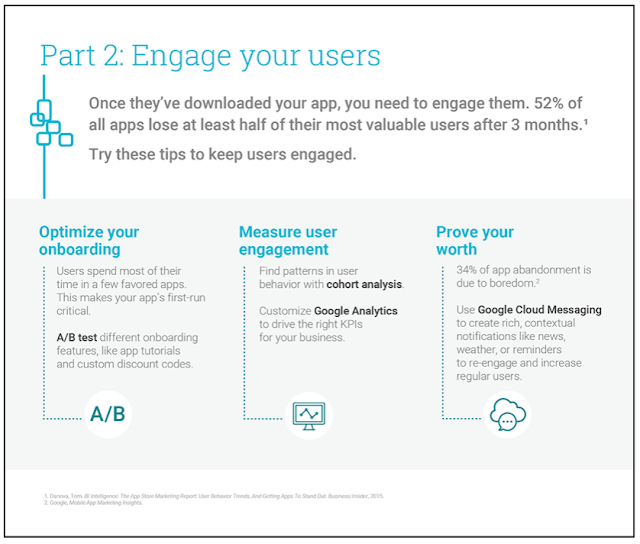
Did you know that 52% of all apps lose at least half of their most valuable users after three months?1 In this environment, how can you ensure your app effectively attracts, engages, and retains users?

Yesterday, we kicked off our mobile bootcamp to help get your app in shape for increased traffic and monetization opportunities during the holiday season. Building on mobile expert Cheney Tsai’s recommendations for growing your app’s audience, Jason Rosenblum, Mobile Solutions Consultant at Google, shares tips for effectively engaging users.

  1. Optimize your on-boarding experience: The first-run of your app is critical in selling its value and utility. Jason suggests using A/B testing to experiment with different features, such as adding an app tutorial or custom discount code.

  2. Measure user engagement and understand how it connects to your business: Knowing whether, when, and how frequently users return to your site allows you to strategically send notifications, identify pain points, and launch features. Cohort analysis indicates patterns in user behavior by aligning all metrics by the different days of user experience, regardless of the specific day a user starts using your app.

    While Google Analytics offers standard measurement options -- average session duration, active users, loyalty, recency, audience overview -- consider the nature of your business to pinpoint significant custom metrics. Jason explains, "You need your analytics to make sense for your business. For example, if youre running a hotel booking site, you want to know the number of hotel searches being run and the number of hotel rooms being booked. Customize your analytics for your business so you can drive the right KPIs."

  3. Remind users of your app’s value: 34% of app abandonment is fueled by a loss of interest, so create rich, contextual notifications like latest news, weather, or reminders to re-engage and increase your daily/monthly users. Google Cloud Messaging, for example, allows you to implement and manage notifications across Android and iOS. Jason advises using rich notifications to add quick actions, such as the ability to Archive an email via gMail notifications, and allowing users to control whether and how often they receive notifications.

The total time spent in apps per smartphone user is increasing, yet the total number of apps used has not changed. Users, therefore, are consolidating their time in certain favored apps. Incorporate Jason’s recommendations to keep your users engaged and come back tomorrow to hear from Dev Gogate, Mobile Solutions Consulting Manager at Google, to maximize your app quality.

Read More..

Monday, June 27, 2016

How To Flash firmware package on the HTC device


Flashing so called "firmware" is as popular these days as flashing "custom ROM". For HTC old-boys its nothing complicated, but some fresh Android users might find it difficult to understand the differences between "firmware" and a "custom ROM". As a result they might be afraid to upgrade OS on their device or even accidentally hard/soft brick it. Before continuing please read this article: How To: Find the proper firmware variant on the HTC device.


First of all let’s make some definitions clear. Both "Firmware" and "ROM" has their own dictionary definitions, but in this guide we need to use the same context of these words as you can find on popular articles and forums.

Your device is equipped with eMMC memory (embedded MultiMediaCard) - a place where every kind of data is stored. This eMMC memory in Android OS is called mmcblk0. But for a various reasons this memory space has to be divided into several smaller parts (f.g. not every kind of data can be stored on the same type of a filesystem). As a result, the eMMC memory is separated into different partitions (RAW, EXT3, EXT4) - smaller or bigger. To indicate the correct partition, each of them has its own number - p1, p2, p3, p(...) etc. The whole partition name indicates also the eMMC number its located in - mmcblk0p1, mmcblk0p2, mmcblk0p3, mmcblk0p(...) etc.

To see a lit of all the partitions on your device just type cat /proc/emmc in the adb.exe command shell.

Doing that you can also see the original name of each partition. The list you can see above is what we call "firmware", and what "custom ROM" is made of is usually just "boot" and "system" partitions. In other words - custom ROM represents "system", "boot" (sometimes "userdata" too) and everything else you can see on the list is a "firmware".


Important: Every signed and official firmware.zip can be flashed on a particular device only. Information about the device and its variant can be found inside android-info.txt in the firmware.zip package.

Question: Where firmware comes from? There are 2 ways: official and non-official. Usually firmware package comes together with the OTA (.zip) update. Inside the OTA package you can find firmware.zip archive (always signed). The non-official way is based on decrypting and extracting content of the RUU (.exe)

Question: Is everything from the list above always included in the official firmware.zip? No. HTC updates only these components (partitions) where there were changes in the code, usually related to the Android OS update or security changes in the bootloader (hboot). That means firmware.zip might have "adsp", "boot", "radio" inside and weigh 10 MB or it might contain a lot more and weight even 50 MB.


Signed (official) firmware packages can be flashed on both S-ON and S-OFF device. Once modified (unsigned) firmware.zip cant be flashed on the S-ON device. If your device is S-ON then you have to re-lock the bootloader. As long as your device is S-ON you also cant downgrade the firmware version.


Important: Make sure you have a correct MID (Model ID) and CID (Carrier ID). To check that use fastboot getvar all command. Everything you do, including following this guide, you do at your own risk!


Flashing Process
  1. Download this mini-sdk package and extract it to c:mini-sdk
  2. Copy firmware (.zip) package to c:mini-sdk and rename it to "firmware.zip"
  3. Connect your device to the PC
  4. Boot your device in fastboot mode (vol down + power ===> fastboot)
  5. Open a command prompt on the PC (cmd.exe), type and confirm each command with ENTER:
  6. cd /d c:mini-sdk
  7. fastboot getvar all (open android-info.txt inside firmware.zip and check if MID and CID matches)
  8. <optionally> fastboot oem lock (if your device is not yet re-locked)
  9. fastboot oem rebootRUU
  10. fastboot flash zip firmware.zip and wait for the process to be completed. Sometimes flashing firmware once doesnt work, so flash firmware.zip again using the same command.
  11. fastboot reboot

In case of further questions I prepared a little Q&A part:
  • What is firmware.zip?
Firmware.zip is a part of Over The Air (OTA) update from the HTC. It contains important parts of the firmware like radio, bootloader, recovery, kernel etc.
  • Why its important to flash firmware.zip and when should I flash it?
It is recommended to have the latest firmware on your device for the best modem performance and overall system stability. Sometimes its necessary to have the latest bootloader too, because otherwise your device might not work well with the new system update.
  • Why its important to flash it before flashing custom ROM?
Because firmware.zip contains boot.img (ramdisk and kernel) that will replace custom boot.img from any custom ROM you already have. Thats why you have to flash firmware.zip first, because otherwise boot.img will be overwritten with the stock one. If you already flashed firmware.zip after flashing custom ROM, just flash this particular custom ROM again.
  • Does firmware.zip contain recovery?
Yes, it does contain recovery image, thats why after flashing firmware.zip you will have to flash custom recovery again to be able to flash custom ROM afterwards.
  • Can I flash any firmware.zip on my device?
Not if your device is S-ON. To be able to flash firmware.zip on the S-ON device, your MID number (example: PN0710000) and CID number (example: HTC__001) must match the firmware.zip version you are about to flash.
  • If my MID or CID doesnt match, can I brick my device if I try to flash firmware.zip anyway?
As long as your device is S-ON flashing firmware.zip with non matching MID or CID will result in error and nothing will be flashed, so there is no risk of brick.
  • Do I need to have locked, unlocked or relocked bootloader to be able to flash firmware.zip?
Your bootloader needs to be relocked.
  • If I cant flash newest firmware.zip because of wrong modeid (MID) or cidnum (CID) does it mean I cant use custom ROM based on the latest HTC update?
In most cases you should be able to use any custom ROM as long as hboot update is not mandatory.
  • What if there is no firmware.zip for my MID/CID?
Try to find latest OTA update for your original stock ROM and extract it. Firmware.zip should be inside.

Do you have any questions or comments? Feel free to share! Also, if you like this article, please use media sharing buttons (Twitter, G+, Facebook) below this post!


For latest news follow Android Revolution HD on popular social platforms:

Read More..

Angry Words Apalabrados v2 1 1 APK Free

 ????? App Store’s Best Game of 2012 ?????
????? App Store’s Best New Game of 2012 ?????
????? App Store’s iPhone App of the Week ?????

Chosen Apple Store’s Best Game of 2012, Angry Words is an addictive word game that has already exceeded 8 million downloads. Challenge your friends and enjoy yourself by making words!

You can play whenever you want and against whomever you want: It is an asynchronous, cross-platform, multi-player game. You can play against your friends or against random opponents. And there are unlimited simultaneous games!

Combine the letters in your rack with the ones in the board, and use the bonus squares to get more points. You can double and even triple the value of the letters you use or the words you make! Besides, if you manage to use all the letters on the rack in one same move, Angry Words will reward you with 40 extra points.

Angry Words has an intuitive and sophisticated interface, and has animations so you can revive your best moves.

You can play in 12 different languages: Spanish, British English, American English, Catalan, French, German, Italian, Dutch, Swedish, Portuguese, Brazilian Portuguese and, now, also Basque!

Bubble Poke™ is a trademark of NRS Magic LTD

Whats New
 NEW! We included a new menu at the right side of the screen so you can access your chats and favourite opponents profiles in a fast and simple way.
 New User Profile: We redesigned your profile as well as your opponents. Youll be able to see more information, access your friendlist, blocked users list and a lot more.
 Faster chat: enjoy a much more dynamic chat experience.
 Bug fixes.

Read Here: How to Install APK

Requirements: Android 2.2+
File Size: 13.3 MB
Download Link: Mediafire.com
Read More..